
Backups
Overview
Section titled “Overview”Clawforce can create compressed snapshots of your OpenClaw instances on demand or on a schedule.
Backups are available to admins only.
What gets backed up
Section titled “What gets backed up”When creating a backup, you select from path aliases or enter absolute paths:
| Alias | Resolves to | Description |
|---|---|---|
HOME | /home/clawforce | The agent’s home directory (default) |
Homebrew | /home/linuxbrew/.linuxbrew | Homebrew installation and packages |
/ | / | Full container filesystem (excluding system directories) |
If you don’t select any paths, HOME is used by default. You can also enter any absolute path
(for example, /etc/nginx) to include specific directories.
System directories such as /proc, /sys, /dev, /tmp, and /run are always excluded.
Creating a manual backup
Section titled “Creating a manual backup”- Open Backups in the sidebar.
- Click Create Backup.
- Select the target instance.
- Choose which folders to include.
- Optionally add a note (for example, “Before upgrading packages”).
- Click Create Backup.
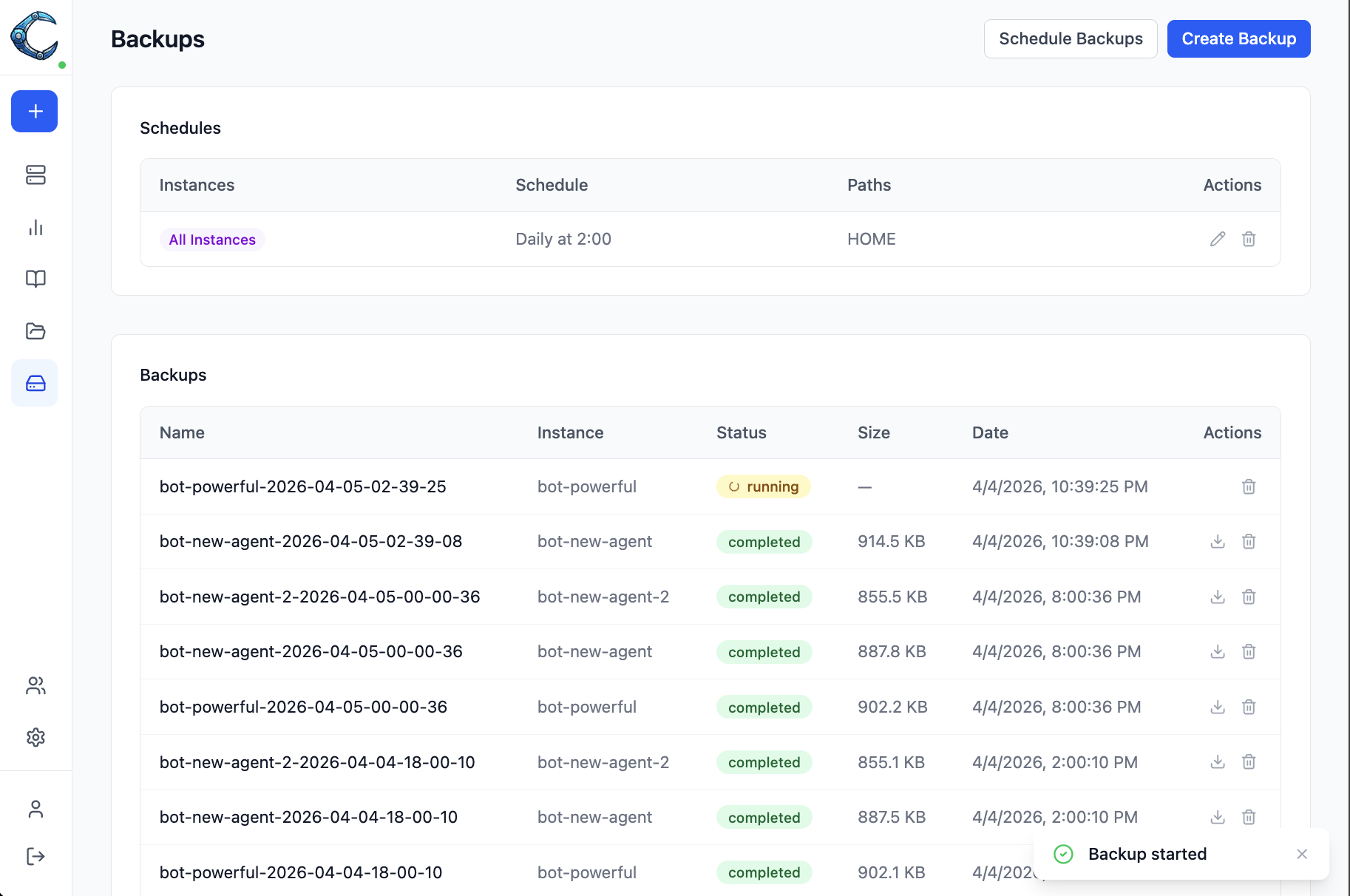
The backup runs in the background. While it runs, the status column shows running with a spinner. Once complete, the archive size appears and the backup is ready for download or restore.
Backups are the recommended safety step before changing an instance’s agent image. For production rollout guidance, see Safe updates.
You can also start a quick backup from the instance detail page. The Overview tab shows a Backups card with the latest backup status and a link to the full backups list for that instance.
Scheduling backups
Section titled “Scheduling backups”Scheduled backups run automatically based on a cron expression.
- Open Backups in the sidebar.
- Click Schedule Backups.
- Select one or more instances, or choose All Instances to cover every instance (including any created in the future).
- Pick a cron preset or enter a custom expression.
- Choose which folders to include.
- Click Create Schedule.
Restoring a backup
Section titled “Restoring a backup”Click the restore icon on a completed backup, then select the target instance. The target instance must be running. Clawforce streams the archive into the container and extracts it, restoring all files to their original paths.